Facilitation
How to make Canva presentations interactive
Canva makes your slides look great. Questiory makes your audience actually participate. Add word clouds, live polls, and collective visualizations to any Canva presentation, no extra tools for participants, no Canva account required.
Canva makes it easy to build slides that look professional. That part works. The harder part is what happens after you hit present: the room watches, you talk, and nobody says anything that actually matters.
Canva Live exists, but it’s limited to basic Q&A and emoji reactions. There’s no word cloud, no collective visualization, no way to see what the whole group is thinking at once. What you get is a list of text submissions that you read out loud. That’s not the same thing as the room seeing itself think.
Questiory adds the piece Canva doesn’t have: real participation that becomes something visible to everyone in the room. A word cloud that grows as people type. A radar that shows the group’s collective rating. A board of flip cards where every response is a contribution, not a submission to the void.
Your slides stay in Canva. Your audience stays in the experience. You add a QR code or a link, and the room starts talking.
Types of interactive experiences you can add to your Canva presentation
What your audience does
 Open-Ended
One question, their words. Perfect for capturing what the room really thinks about your topic.
Open-Ended
One question, their words. Perfect for capturing what the room really thinks about your topic.
 Long Answer
Deeper questions for more considered responses. Works well at the end of a content-heavy slide.
Long Answer
Deeper questions for more considered responses. Works well at the end of a content-heavy slide.
 Multiple Choice
Fast group poll. Results come back as a live chart the whole room sees at once.
Multiple Choice
Fast group poll. Results come back as a live chart the whole room sees at once.
 Valuation
Rate a statement. Great for confidence checks, energy reads, or gauging alignment before a key topic.
Valuation
Rate a statement. Great for confidence checks, energy reads, or gauging alignment before a key topic.
 Categorize
Sort responses into categories you define. Great for prioritization and taxonomy exercises.
Categorize
Sort responses into categories you define. Great for prioritization and taxonomy exercises.
 This or That
A fast binary split. Show the group where it divides. Often more interesting than where it agrees.
This or That
A fast binary split. Show the group where it divides. Often more interesting than where it agrees.
 Drawing
Sketch a process, concept map, or mental model. Each person's thinking becomes visible to the group.
Drawing
Sketch a process, concept map, or mental model. Each person's thinking becomes visible to the group.
 Pin on Image
Mark a spot on any image. Ideal for spatial questions, diagrams, and journey mapping.
Pin on Image
Mark a spot on any image. Ideal for spatial questions, diagrams, and journey mapping.
 Multi Entry
Multiple answers from each person. "List three things you want to get from this session."
Multi Entry
Multiple answers from each person. "List three things you want to get from this session."
 Iconic Answer
Choose an emoji or icon. Low friction, high signal. Works at the start or end of any slide.
Iconic Answer
Choose an emoji or icon. Low friction, high signal. Works at the start or end of any slide.
 Image Entry
Submit a photo with a response. Great for field evidence, creative workshops, or before/after exercises.
Image Entry
Submit a photo with a response. Great for field evidence, creative workshops, or before/after exercises.
What the group sees
The result isn’t just a list. It’s a visualization the whole room watches build in real time. That’s what makes people want to participate instead of sitting it out.
 Word Cloud
Words grow with frequency. The group's thinking becomes something you can look at together.
Word Cloud
Words grow with frequency. The group's thinking becomes something you can look at together.
 Sentence Cloud
Full responses floating as phrases. Captures nuance that single words can't.
Sentence Cloud
Full responses floating as phrases. Captures nuance that single words can't.
 Nodes
Categorized answers as an interactive network. Connections and patterns tend to emerge on their own.
Nodes
Categorized answers as an interactive network. Connections and patterns tend to emerge on their own.
 Wheel
Categories and contributions as a sunburst chart. Striking at a glance.
Wheel
Categories and contributions as a sunburst chart. Striking at a glance.
 Gauge
A circular scale showing where the group lands on a rating. Instantly readable, visually clean.
Gauge
A circular scale showing where the group lands on a rating. Instantly readable, visually clean.
 Radar
Shows how the group rated multiple dimensions at once. Useful for self-assessments and alignment checks.
Radar
Shows how the group rated multiple dimensions at once. Useful for self-assessments and alignment checks.
 Flip Cards
Each response becomes a card the group can browse. Great for longer answers and peer reflection.
Flip Cards
Each response becomes a card the group can browse. Great for longer answers and peer reflection.
 Pictogram
Responses turned into a visual pictogram. Striking and immediately readable.
Pictogram
Responses turned into a visual pictogram. Striking and immediately readable.
 Bar Chart
Live distribution of multiple choice results. Simple, readable, and satisfying to watch fill in.
Bar Chart
Live distribution of multiple choice results. Simple, readable, and satisfying to watch fill in.
 Pie Chart
Distribution view for choice and rating results. Familiar format that works in any context.
Pie Chart
Distribution view for choice and rating results. Familiar format that works in any context.
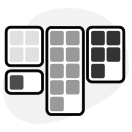 Board
All responses as a pinboard. Good for longer answers where you want to scan the full picture at once.
Board
All responses as a pinboard. Good for longer answers where you want to scan the full picture at once.
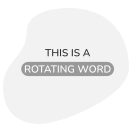 Rotating Words
Answers cycle through in an animated sequence. Great for displaying collective takeaways at the end.
Rotating Words
Answers cycle through in an animated sequence. Great for displaying collective takeaways at the end.
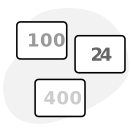 Quick Stats
Key numbers from the group surfaced at a glance. Clean and direct for quantitative results.
Quick Stats
Key numbers from the group surfaced at a glance. Clean and direct for quantitative results.
 Card Deck
Responses shown as a browsable deck of cards. Good for longer answers you want to explore one by one.
Card Deck
Responses shown as a browsable deck of cards. Good for longer answers you want to explore one by one.
Three ways to run Questiory alongside Canva
You don’t need to change how you present. You add one moment, or several, depending on how your session is structured.
1. QR code on a slide Drop a QR code image on any Canva slide. When you reach it, tell the room to scan it. They respond from their phone. You open your Questiory dashboard on a second screen or tab and project the results. The whole setup takes under two minutes to prepare.
2. Link in the chat You’re presenting via Zoom, Meet, or Teams. When you reach the activity, paste the Questiory link in the chat. The group opens it in their browser, no install, no account, and responds while you watch the visualization build on your screen. Share your screen to show the results to everyone.
3. Sent ahead or after Not everything needs to happen during the presentation. Send the activity link before the session as a warm-up (“respond before we meet”), or after as a reflection and commitment exercise. The results accumulate asynchronously and you open the visualization when the group is together.
Matches your Canva style
Canva gives you control over every design detail. Questiory does the same. Set your brand colors, choose your fonts, adjust backgrounds, buttons, and result displays. The activity ends up feeling like it was designed for your session, not dropped in from another tool.
Presenters who build their brand around their workshops notice the difference: participants comment on how cohesive the experience feels. That’s not a small thing. Perceived professionalism does affect how seriously people engage with the content.
With a Storyteller licence, you get full white-label: no Questiory branding anywhere in the activity. Just your presentation, your brand, your audience.
What changes when the room can see itself
Something shifts the first time someone watches their response appear in a word cloud alongside everyone else’s, and sees the word they wrote show up as the biggest one in the room. Or watches their rating move the group’s gauge. Or reads a flip card from a colleague that captures exactly what they were thinking but didn’t say out loud.
It’s not about submitting something into a void that the presenter will process. It’s about contributing to something visible, something that is now part of the session, something everyone is looking at together.
The room goes quiet in a different way. People are reading. Noticing. Thinking about what the result means.
Works in any format
Workshops. Use it at the start to read the room, in the middle to check understanding, and at the end to capture collective takeaways.
Training sessions. Replace the “any questions?” moment with a structured activity that captures what’s unclear before moving on.
All-hands and team meetings. Collect the real pulse of the team, not just the opinions of the three people who always speak up.
Client presentations. Engage the room before the proposal, surface objections before they become silences, and close with a visible collective decision.
Educational classes. Every slide becomes a potential conversation instead of a one-way transmission.
Make any slide a conversation
Add real interaction to your Canva slides
Build your first activity in minutes. No account needed for participants — just the QR code or link.
Get started for free