Learn
How to create your first experience in Questiory
A step-by-step walkthrough for creating your first interactive experience in Questiory, from a blank canvas to a live activity ready to share.
Creating your first experience in Questiory takes a few minutes. This walkthrough covers each step, so you know what to expect and can focus on the content instead of figuring out the interface.
Log in to your account
Go to author.questiory.com and log in to your account. From your dashboard, click New presentation. This opens a blank editor where you’ll build your experience.
You’ll see the main canvas in the center, a panel on the left for adding elements, and settings on the right.
Create a new presentation
When you click New presentation, Questiory asks you to name it before anything else. Something descriptive works well since that’s how you’ll find it in your dashboard later. Something like “Team check-in” or “Session reflection” is easy to spot at a glance.

Add your slides
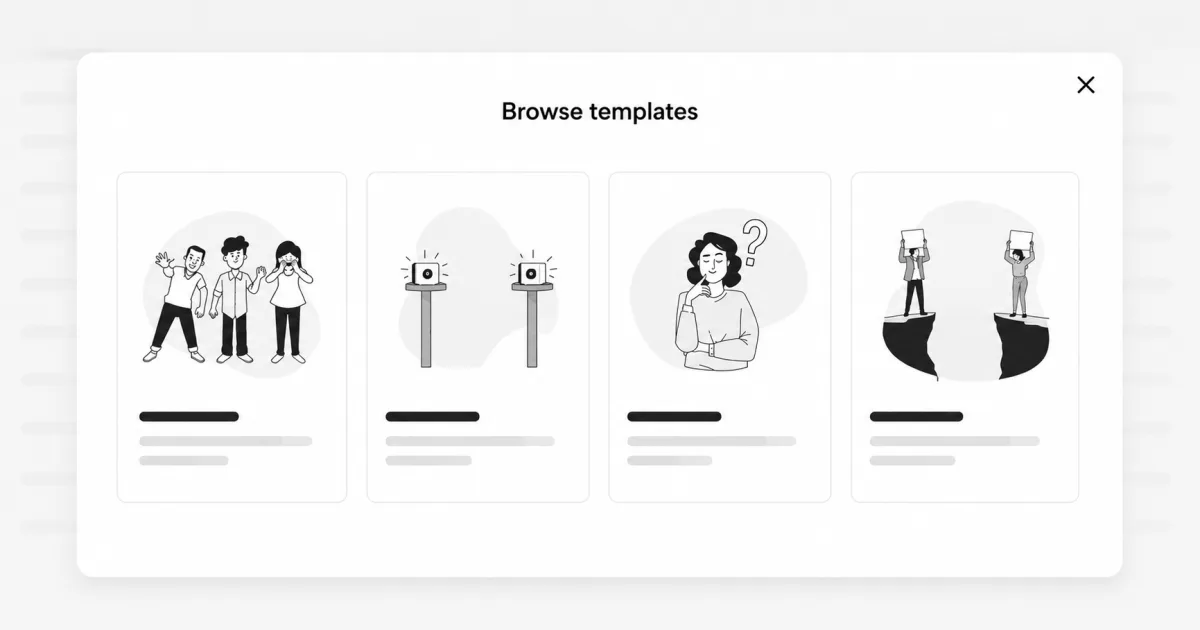
The editor has three types of elements you can add to your canvas:

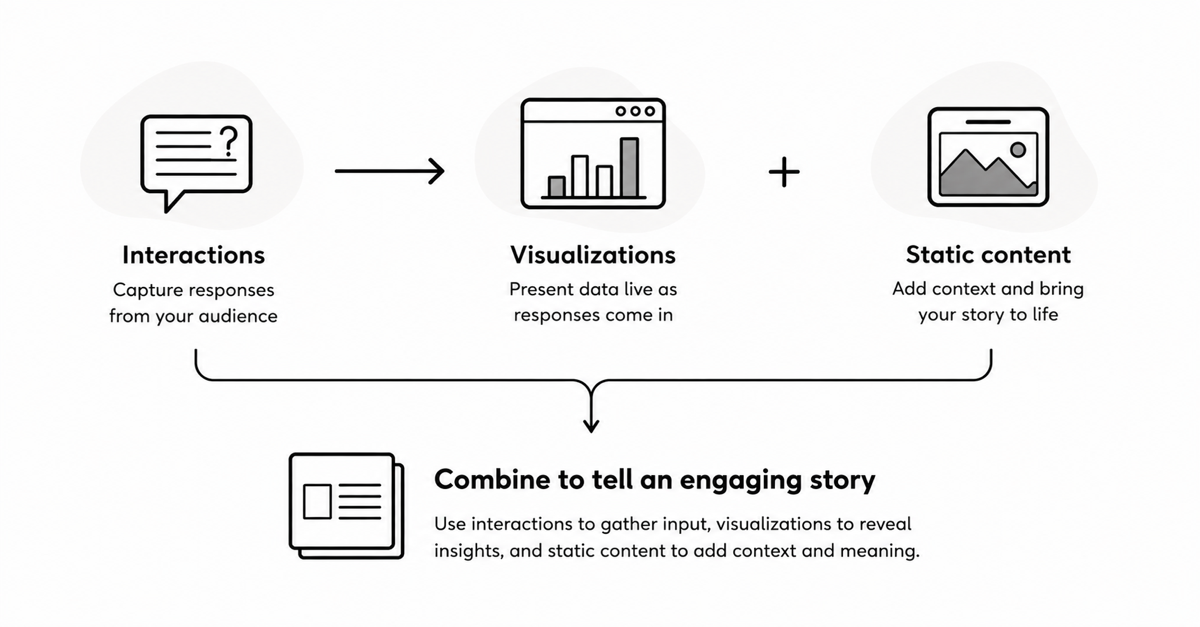
Interactions
The questions or prompts your participants respond to.
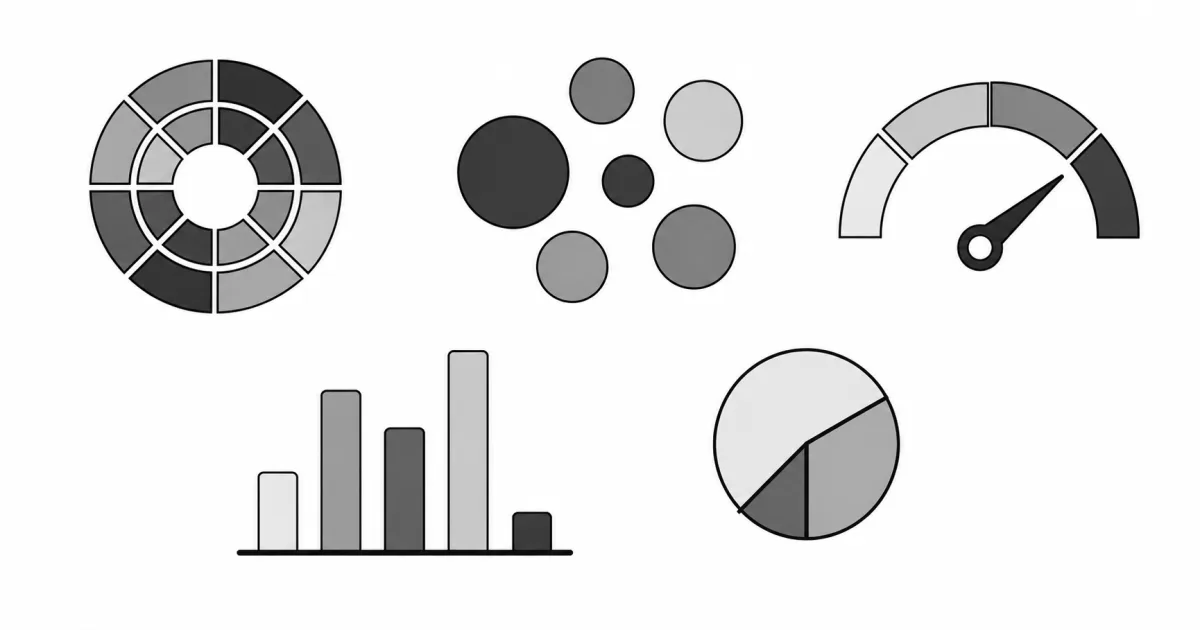
Visualizations
How collected responses are displayed on screen.

Static content
Non-interactive elements that add context without collecting data.
Interaction
Visualization
Most experiences need both: the interaction collects responses from participants, and the linked visualization shows those responses on screen as they come in. You can also use just an interaction if you only want to gather responses without displaying them live, or just a visualization to present results without collecting new ones. Both paths are valid.
To add your first element, click New slide. This adds a slide to the canvas where you can choose what type of element to place. When it comes to building, you have two paths:
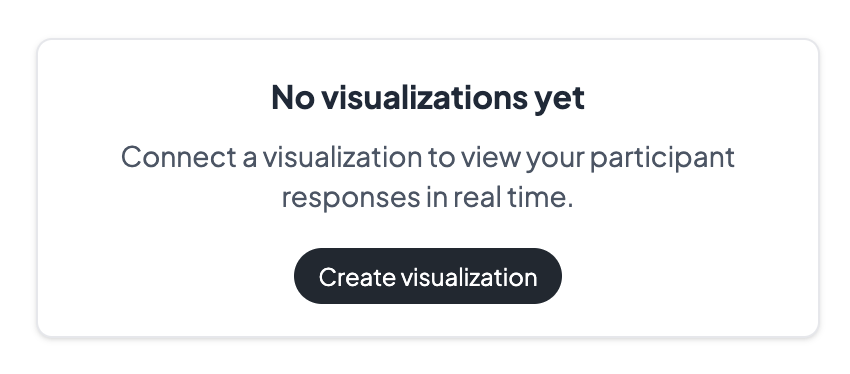
Start with an interaction. If you already know what you want to ask, add the interaction first. Once it's on the canvas, the right panel shows a No visualizations yet prompt. Click Create visualization to pick a compatible visualization and link it to your interaction. This works well when the question is the starting point and you're open to different ways of showing the results.
Start with a visualization. If you already know how you want to display the data, add the visualization first. The editor will then suggest compatible interactions that can feed into it, and you can choose how you want to collect the responses. This is usually the faster path when the visual output is what you have in mind.
Either way, you can add as many elements as you need. For a first experience, one or two interactions is often enough.
Preview your experience
Before sharing, click Open presentation to see exactly what your participants will see. Try submitting a response yourself to check the visualization works the way you expect.
This is a good moment to catch typos or rephrase a question that sounds a bit off.

Share with your group
Your experience is live from the moment you create it. Click the Share button to get your link, QR code, or embed, and send them to your group whenever you’re ready.

You can edit your experience at any time, even after sharing it. Changes take effect immediately.
Other resources that may be of interest
Common questions about creating an experience
Do I need to add both an interaction and a visualization?
No, but without a visualization, participants won't see their responses on screen. Interactions collect the data. Visualizations display it. You can have interactions without visualizations if you only need to collect responses, not show them live.
Why does nothing happen on screen when participants submit their answers?
This usually means your experience only has an interaction slide with nothing after it. Once someone submits, Questiory moves to the next slide, but if there's nothing there, it looks like nothing happened. Add a visualization or a static content slide (like a thank-you screen) after the interaction so participants are guided to the next step.
Can I change the order of slides after adding them?
Yes. You can drag slides to reorder them at any time. The order you set is what participants see when they open the experience.
Can I change the type of interaction after creating it?
No. Interaction types are fixed once created. To use a different type, create a new interaction. Responses collected with the original won't transfer.
Can I use multiple visualizations for the same interaction?
Yes. Visualizations are added in one click and you can use as many as you want, including several different types for the same interaction in the same presentation. Each one pulls from the same responses.
Can I duplicate a slide or an entire experience?
Yes to both. You can duplicate individual slides within the editor, and duplicate an entire experience from your dashboard. Useful when you want to reuse a setup for a new session.
Can I add a cover or intro slide?
Yes. Static content slides let you add any non-interactive content, including a welcome screen, instructions, or a closing message.
Is there a limit to how many slides I can add?
It depends on your plan. In practice, experiences with fewer, well-chosen interactions tend to get better engagement than long ones with many prompts.
What types of interactions can I create?
Questiory has several interaction types: open-ended responses, multiple choice, ratings, drawings, images, and more. You can explore them in the interactions section of the features page.
Can I use an interaction from another presentation in a visualization?
Yes. When adding a visualization, you can connect it to an interaction from a different presentation. The interaction stays in the presentation where it was created, but the visualization can live anywhere and will pull from the same responses.
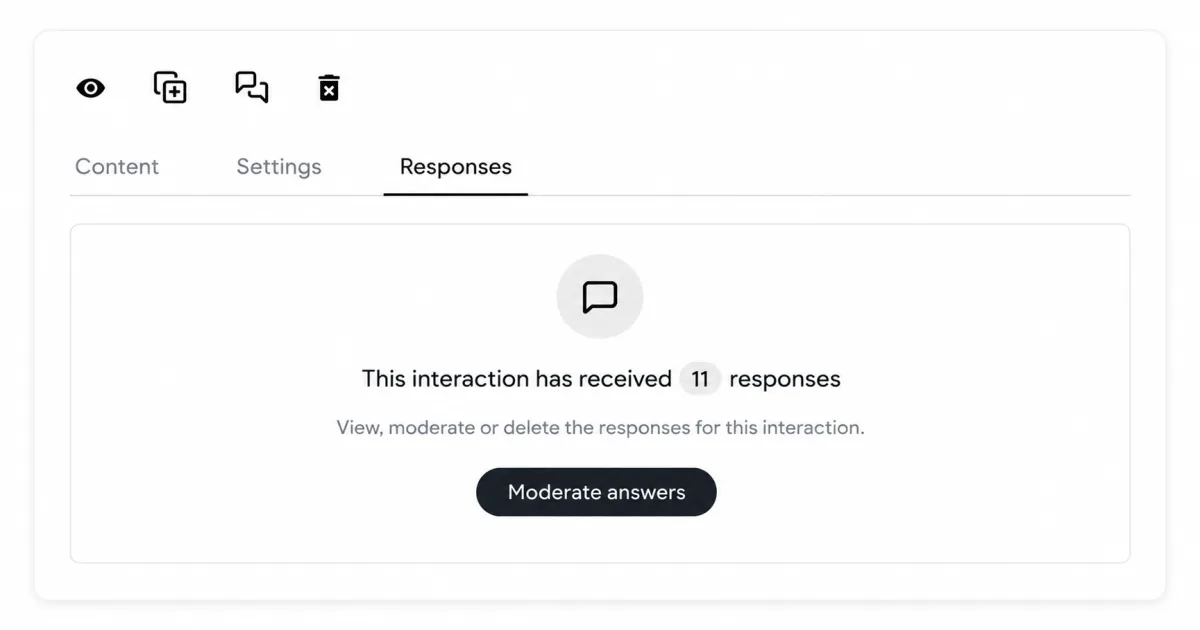
What happens if I delete an interaction that already has responses?
All visualizations connected to that interaction are deleted as well. The responses are not recoverable after deletion.
Do experiences expire?
No. Experiences stay active until you decide otherwise. If you want to stop accepting responses, go to the presentation settings and click Close participations. That disables the experience without deleting it.
Why can't I see my interaction slide in the presentation?
The slide may have Hide slide enabled. This setting makes the slide invisible in the presentation view while still collecting responses. Check the slide settings in the editor and toggle it off if you want the slide to appear.
Why can't I see my visualization slide in the presentation?
Same reason: Hide slide may be enabled on that slide. Open the editor, select the visualization slide, and check if the hide setting is on. Turn it off to make it visible in the presentation.