Learn
How to use a template in Questiory
Templates give you a starting point instead of a blank canvas. Here's how to find one that fits your context, customize it, and get it ready to share.
Starting from a blank canvas is useful when you know exactly what you want to build. But if you’re exploring what’s possible, or if you want to get something ready quickly, templates are a faster path.
A template in Questiory is a pre-built experience with interactions and visualizations already configured. You can use it as-is or adjust it to fit your context.
Step 1: Browse the template library
From your Questiory dashboard, click Use a template. This opens a library of ready-made experiences organized by use case.
You’ll find templates for common scenarios: team check-ins, retrospectives, icebreakers, brainstorming sessions, training feedback, and more. Browse by category or search by keyword if you’re looking for something specific.
Each template has a preview so you can see what participants will experience before you commit to using it.
Some of the templates available

I Like, I Wish, I Wonder
Gather constructive feedback with three prompts that balance positives, improvements, and possibilities.

Brainstorming session
Generate ideas around any topic, then identify which ones resonate most with the group.

Gratitude Circle
Encourage a culture of appreciation by recognizing others.
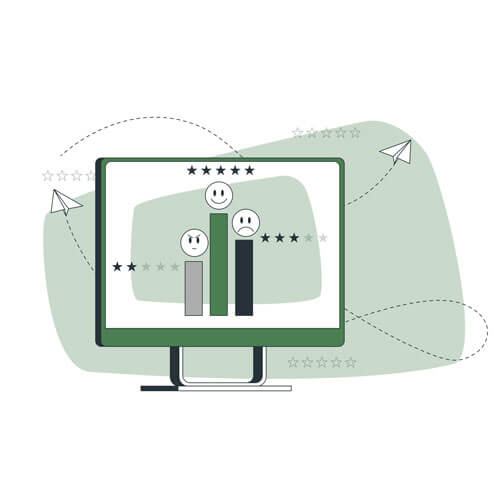
Employee engagement pulse survey
Measure team engagement across key dimensions and collect actionable suggestions.

360 Emotional Competencies Radar
Compare peer feedback with self-reflection to identify development opportunities.
SMART goals generator
Document SMART goals individually or collaboratively.

Collaborative SWOT Analysis
Evaluate your team's strengths, weaknesses, opportunities, and threats together.

Weekly Wins Tracker
Celebrate team wins and build morale through collaborative recognition of achievements.

Training Feedback Survey
Collect feedback from a training workshop, course, or learning event.

Confidence Vote
A simple way for teams to express how confident they feel about a plan.
Step 2: Create the presentation
When you find one that fits, click Create. Questiory creates the experience in your account, ready to share or use as a starting point. It’s yours to edit freely.
Step 3: Customize it
Open the experience in the editor. You’ll see the slides that were already set up. At minimum, you’ll probably want to:
- Edit the title to match your session
- Adjust question wording to fit your context or your group’s language
- Add or remove slides, including interactions, visualizations, or static content slides
Some templates are simple enough to use without changing anything. Others are designed as starting points that you’ll want to tailor more significantly.
Step 4: Preview and share
Before sharing, use Open presentation to see the experience from your participants’ perspective. This is a good moment to check that the questions read well and the visualizations feel right.
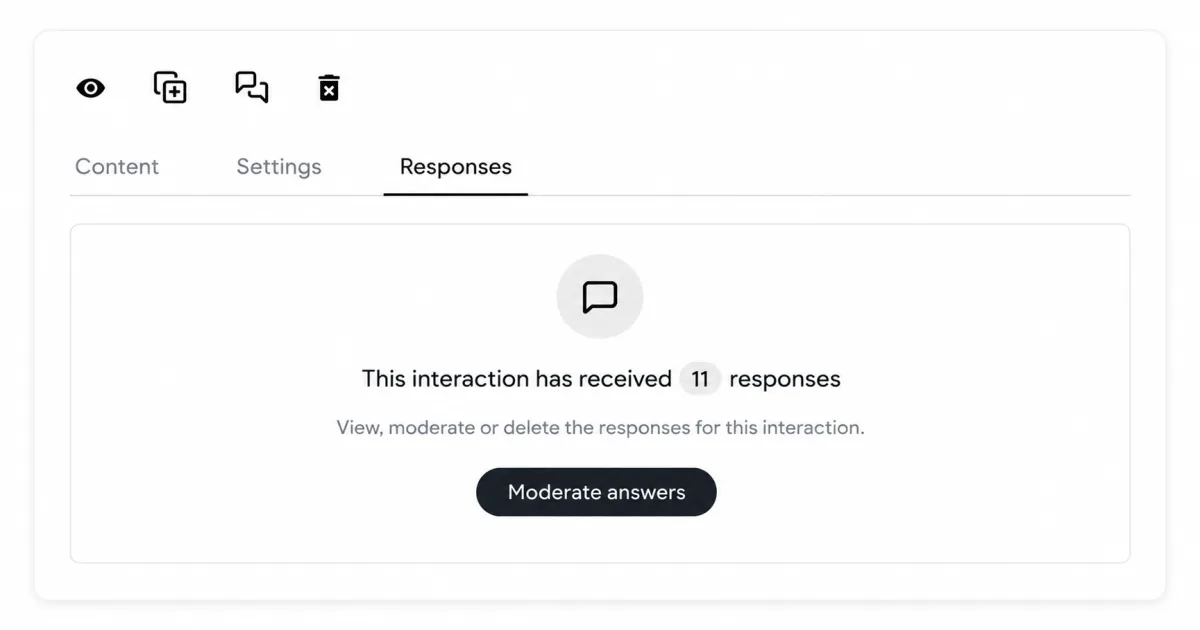
Keep in mind that the presentation will appear empty at first. Visualizations need data to come to life. If you want the visualizations to show something before your session starts, you can preload a few responses. Otherwise, just leave it ready and let your audience fill it in live.
When you’re ready, use Share to get the link or QR code and send it to your group.
A few things worth knowing
Using a template doesn’t limit you. Once the copy is in your account, you have the same flexibility as if you’d built it from scratch. You can change any part of it.
If you find a template you use regularly, you can also duplicate your customized version to reuse it in future sessions. This way you build your own set of starting points over time.