Learn
How to create a digital card deck
Build an interactive card deck in Questiory. The group contributes the cards with drawings, images, or icons, then draws them together to spark the activity.
A digital card deck in Questiory works differently from a deck you build yourself ahead of time. The group contributes the cards (with a drawing, an image, or an icon and some text), and then everyone draws from it together, on screen. The content feels authentic because the group made it, and the automatic shuffle adds a bit of surprise to the activity.
This guide walks you through the steps.
Log in and create a new presentation
Go to author.questiory.com and log in to your account. From your dashboard, click New presentation and give it a name, something that helps you identify it later.
Add a Card Deck visualization
Click New slide and add a visualization. Look for the Card Deck option in the visualizations list.

Once it’s on the canvas, you can configure how cards get drawn. Questiory will ask you to connect it to an interaction to pull content from, you’ll set that up in the next step.
Choose how your audience will create the cards
Card Deck is compatible with several interactions, but these three are the ones that fit a card activity best:

Drawing
Each participant draws their card. Works well for icebreakers, where the act of drawing itself lowers the bar to participate.

Image entry
Each participant picks an image and pairs it with a short caption. Works well for cards with personal context, like team superpowers.

Iconic answer
Each participant picks an icon from a category and writes their answer. Works well for structured cards, like a skills marketplace.
If you’d rather have text-based cards instead of drawings, images, or icons, Short Answers, Long Answers, and Categorized Answers also work:

Short answers
Each participant writes a short response. Works well for simple, one-line cards.

Long answers
Each participant writes a longer response. Works well for cards with more context or a short story.

Categorized answers
Each participant writes their response under a category. Works well for cards grouped by topic.
Questiory will ask you How do you want to capture data for this visualization? Pick whichever option fits the activity you have in mind.
Choose how cards get drawn
Once your Card Deck visualization is created, the Settings panel on the right lets you choose the draw mode. There are three ways to draw cards, and each one sets a different pace for the activity:
- Single card: draws one card at a time. Works well for icebreakers and daily rituals, where you want a moment of focus on one thing.
- Three cards: draws three cards together. Works well for team building or deeper exploration, when you want to compare a few ideas at once.
- Full deck: lets the group browse the entire deck freely. Works well for matching activities, where people are looking for something specific instead of receiving it at random.
The deck shuffles itself automatically, so the order is always unpredictable.
Preview and share
Before sharing, click Open presentation to see what your participants will see. Submit a couple of test contributions to check that cards get added to the deck correctly.
Once you’re satisfied, click Share to get the link, QR code, or embed code, and send it to your group when you’re ready.
Cards keep getting added to the deck in real time as contributions come in. You can let the group contribute asynchronously and draw cards later in a live session, or do both at the same time.
Something worth noting: the deck stays live. You can keep it open across sessions so it keeps growing, or close participation from the presentation settings when you want to lock in the content.
If you want to reuse the same activity with a different group, duplicate the presentation and clear the interaction’s responses from its settings to start with an empty deck.
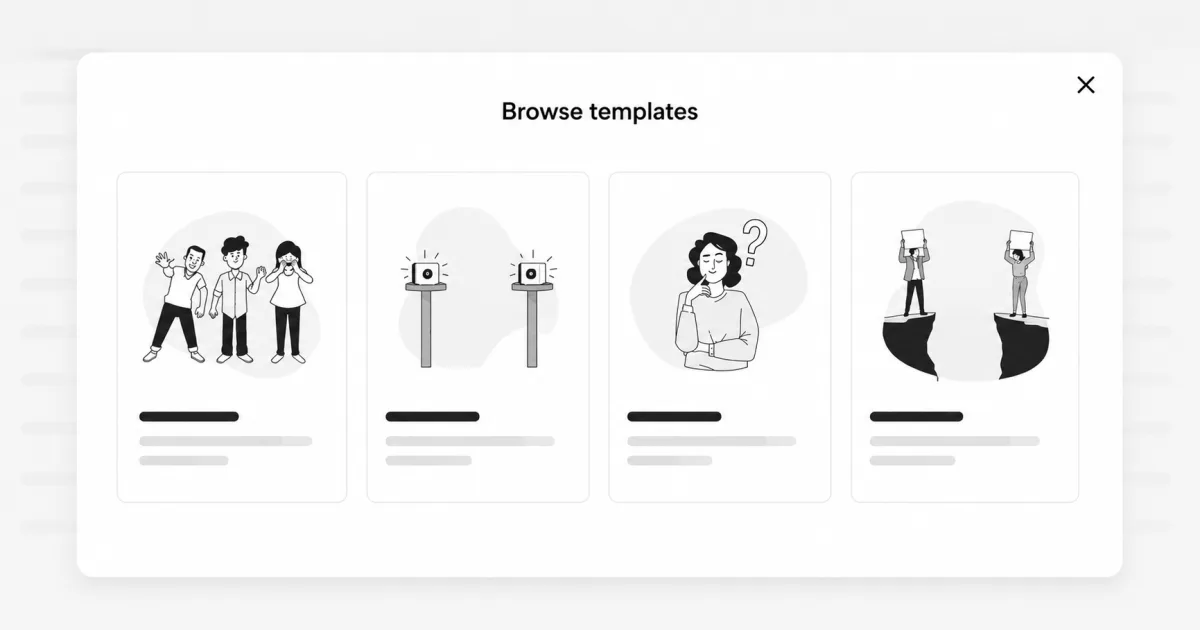
If you’re looking for ideas of what to ask the group, Custom card deck walks through a few ready-made activities, from icebreakers to a skills marketplace.
Other guides that may be useful

Common questions about digital card decks in Questiory
Which interaction should I use for a card deck?
Drawing, Image entry, and Iconic answer are the best fit when you want visual content on each card. If you'd rather have text-based cards, Short answers, Long answers, and Categorized answers also work. Choose based on the kind of content you want the group to share.
Can I design the cards myself?
The content of each card comes from the group through the interaction you choose. What you can customize is the deck's cover, from the Card Deck visualization settings, to give it its own identity before anyone starts drawing.
Can I use a deck from a previous presentation in a new experience?
Yes. When adding a Card Deck visualization, you can connect it to an interaction from any of your presentations, not just the current one. The deck will display contributions from that interaction regardless of where it lives.
Does the deck work in person, or only for remote teams?
It works for both. Each person joins from their own phone or computer by opening the presentation link or scanning the QR code, so an in-person group can use the same digital deck without needing physical cards, and a remote team can join from anywhere.
Can I embed the card deck on a website or course platform?
Yes. Use the embed option from the Share menu. You'll get an iframe snippet you can paste into any HTML-compatible page. The embedded version updates live, so visitors see the current deck whenever they load the page.
Do cards accumulate over time or reset between sessions?
They accumulate by default. If you want a fresh start for a new session, you can clear the responses from the interaction settings before you begin, duplicate the interaction, or duplicate the presentation, whichever works best for you.
Can I change how cards get drawn after the deck is already built?
Yes, you can switch between single card, three cards, or full deck from the visualization settings at any time, even with cards already loaded into the deck.